Disclosure: we make Ambifold, one of the tools below. Its free edition and its Pro trial sign in with a client that you create this way, and the app's setup guide follows the same steps. They are the same for rclone and the other tools. If something here is wrong or out of date, please tell us at support@ambifold.com.
In short
- A client ID is how an app identifies itself to Google when you sign in. Creating your own is free, takes one Google Cloud project and about 10 minutes, once. Google lets apps for personal use (fewer than 100 users) run without its verification.
- You need one for rclone (its shared client is being retired in 2026), overGrive, google-drive-ocamlfuse and Ambifold's free edition.
- Two traps in 2026: Google asks for a home page and a privacy-policy link on the Branding page before it lets you publish the app, and while an app is in “Testing”, Google ends your sign-in after 7 days.
1. Why now
For years, rclone came with a shared client that its users signed in through. On 6 July 2026, rclone announced that Google would start charging for API requests made through it “later in 2026, following 90 days of notice”, and asked Drive users to create their own client. On 19 September 2026, rclone's maintainer wrote that Google had “gone silent” and might be revising the plan; there was no newer announcement when we checked. rclone's documentation, updated on 9 October 2026, still says the shared client “will stop working during 2026”, and that creating your own is now “required rather than merely recommended”.
Other tools have always asked for a client of your own, among them overGrive, google-drive-ocamlfuse and Ambifold's free edition. So does a workaround shared by KDE users since Google blocked KDE's built-in Drive access. Our comparison of Google Drive clients for Linux says which tools need one.
2. What it means, and is it safe?
- The client is yours. You create it in your own Google Cloud project, and the tool uses it to sign in to your Google account. The client ID and its secret stay on your computer, in the tool's settings.
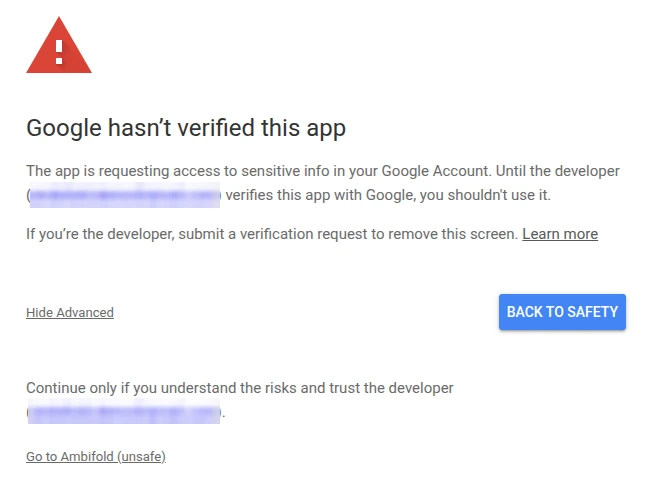
- Personal use is allowed without verification. Google does not require its verification for apps for personal use (fewer than 100 users). Because the app is not verified, Google shows a “Google hasn't verified this app” screen when you sign in: expected here, since the app is your own.
- Sync tools ask for full Drive access. To sync any folder you choose, a tool needs the
https://www.googleapis.com/auth/drivepermission, which Google describes as “See, edit, create, and delete all of your Google Drive files” and counts among its “restricted” scopes. Only give it to tools you trust. - Work and school accounts: if your organisation's administrator restricts third-party apps, or your account uses Advanced Protection, Google may block the sign-in.
3. The steps
Google renames these screens from time to time. The labels and pictures below are the ones in the console when we last went through these steps, on 18 October 2026; if one differs, look for the nearest match. You can use any Google account for the project: it does not have to be the account whose Drive you sync (if it is a different one, add the Drive account as a test user in the Audience step). Ambifold's setup guide in the app follows the same steps but numbers them differently, so this guide refers to other steps by name.
- Create a project. Open New project in the Google Cloud console, give the project any name, for example “My Drive sync”, and click Create. It is free: you don't need to add a payment method. Check that the new project is selected at the top of the console before the next steps.
- Enable the Google Drive API. Open the Google Drive API page in the API Library (or search the Library, under “APIs & Services”, for “Google Drive API”) and click Enable.
- Set up Google Auth Platform. Open Google Auth Platform → Branding. If it says that Google Auth Platform is not configured yet, click Get started and fill in its four parts:
- App information: an app name, and your e-mail address as the user support email. Name it after the tool you use it with, for example “rclone”; for Ambifold, use “Ambifold” (see section 4).
- Audience: “External” for a personal Gmail account. With a Google Workspace (work or school) account you can choose “Internal” instead: then only accounts of your organisation can sign in, and there are no test users, no “Publish app” and no 7-day limit, so you can skip the Branding links and the Audience step.
- Contact information: your e-mail address, for Google's notices about the project.
- Finish: agree to the Google API Services User Data Policy, then click Continue and Create.
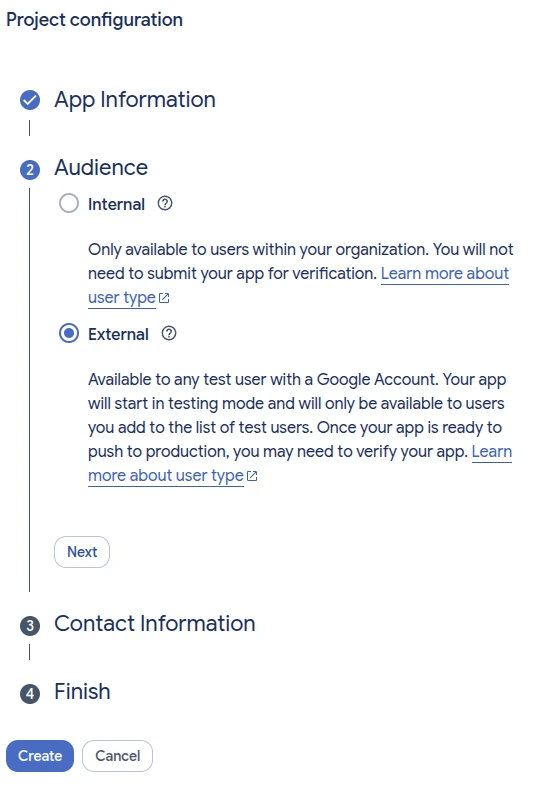
Get started, part 2: Audience set to External. 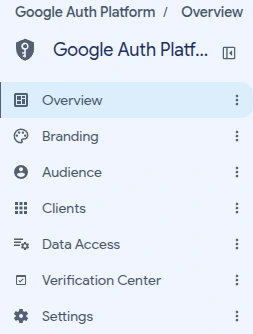
Once it is set up, Google Auth Platform has this menu on the left. You'll use Branding, Audience and Clients. - Branding: the home page and privacy-policy links. Still on the Branding page, fill in the App domain section, then click Save. Add the domain under Authorized domains (Add domain) first: Google accepts the links only for a domain on that list. Then enter the Application home page, the Application privacy policy link and, if you have one, the Application terms of service link. Which links to use is in section 4. Leave App logo empty: once the app is published, a logo makes Google ask for a verification review.
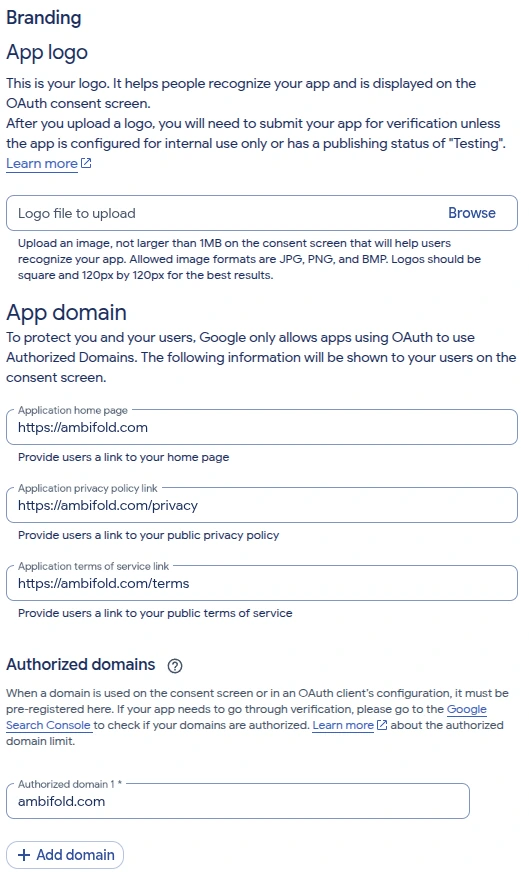
Branding: logo empty, the three links, and the domain under Authorized domains (Ambifold's values). - Data Access (optional). You can skip it for a personal client: the app is unverified, so Google shows its warning screen either way. If you add scopes (Data Access → Add or remove scopes, then Update and Save), a sync tool such as rclone or Ambifold needs
https://www.googleapis.com/auth/drive; rclone's documentation also listshttps://www.googleapis.com/auth/docsandhttps://www.googleapis.com/auth/drive.metadata.readonly. - Audience: add yourself, then publish. Open Google Auth Platform → Audience and check that the user type is “External”. Under Test users, click Add users, add the Google account whose Drive you want to sync, and click Save. Then click Publish app and confirm: the publishing status changes from “Testing” to “In production”.
Don't skip “Publish app”. While the app is in “Testing”, Google ends your sign-in 7 days after you allow access, and your tool stops syncing until you sign in again. Publishing doesn't make anything public or share your files. If the button is greyed out, or Google says you must complete your configuration on the Branding page, go back to the Branding step.
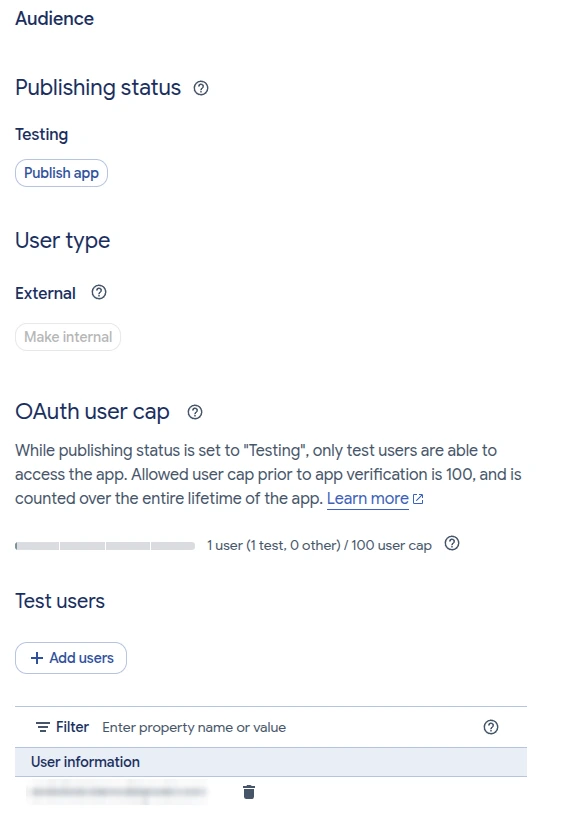
Audience: one test user added; next, click Publish app. - Clients: create a Desktop app client. Open Google Auth Platform → Clients → Create client. As Application type, choose Desktop app; the name doesn't matter. If you see “Use this client for an AI-powered agent”, leave it unticked. Click Create. These tools need a “Desktop app” client: other types give sign-in errors.
Google then shows the client ID and the client secret in the “OAuth client created” window. Copy the secret there, or click Download JSON: Google shows a client's full secret only once, when it is created. If you lose it, open the client in the console and use “Add secret” to make a new one.
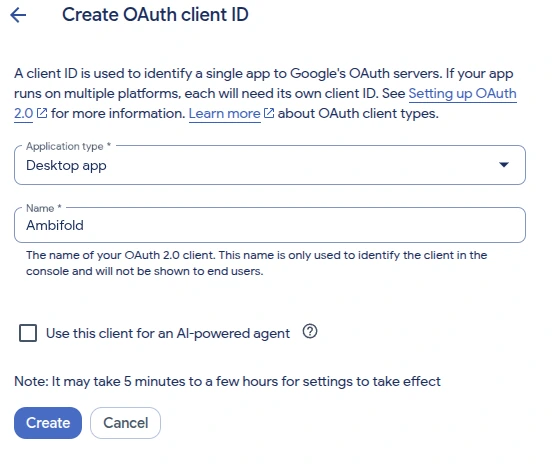
Create client: Desktop app, AI-agent option unticked.
After you publish, the Branding page says “Your branding needs to be verified before it can be shown to users” and shows a Verify branding button. A client for your own use doesn't need it: see section 4.
4. The homepage and privacy-policy links
Since late August 2026, and still in mid-October, people report that the “Publish app” button stays greyed out, with the message “To publish your app, you must complete your configuration on the Branding page”, until the Branding page has an application home page, a privacy-policy link and their domain under Authorized domains, even for a personal app. Google's help for the Branding page says these links “are required for all external production apps”.
Google's OAuth policy also says that a production app's home page must describe the app, link to its terms of service and privacy policy, and sit “on a verified domain under your ownership”. Google checks who owns a domain, in Search Console, when an app is submitted for brand verification, which an app for personal use does not need. In our own test on 29 September 2026, and in rclone users' reports since, publishing itself did not check who owns the domain.
- No domain of your own? rclone's documentation suggests a free GitHub Pages site that you create yourself, with its domain added under Authorized domains. Reports differ on how well that works: some people get errors such as “Missing domain: github.com”, while others say the workaround worked for them.
- Use pages that you control and that describe your own use of the app.
- Just trying a tool? You can leave the app in “Testing” instead, with no links at all, and sign in again every 7 days.
“Verify branding” after publishing. The Branding page then asks you to verify your branding. That only lets Google show your app's name and logo on its sign-in screen, and it asks for proof, in Search Console, that you own the domain of your links. Without it, Google shows your app's domain on the sign-in screen instead of its name, and sign-in works. rclone users report that a failed check left their app published and working.
For Ambifold: Ambifold's terms let you enter Ambifold as the app name, https://ambifold.com, https://ambifold.com/privacy, https://ambifold.com/terms and the domain ambifold.com in a client that you create only for your own use of Ambifold, and the app's setup guide hands you these values with copy buttons. Leave the logo empty. That permission does not cover clients for other tools. Don't click Verify branding: it asks for proof that you own ambifold.com, so it can't pass. If you clicked it already, your app stays published; don't choose “Request additional review”.
5. Using your client
- rclone, a new remote: run
rclone config, choosenand thedrivestorage type, paste your client ID atclient_id>and the secret atclient_secret>, choose scope1(“drive”, full access), and answeryto sign in with your web browser. - rclone, an existing remote: in
rclone config, chooseeand your Drive remote, and enter the newclient_idandclient_secret. Then sign in again, so that rclone really uses the new client:
Answer yes when it asks to refresh the token, and do this for every Drive remote. On a computer without a web browser, follow rclone's remote setup instructions.rclone config reconnect yourremote: - Ambifold (free edition and Pro trial): the setup guide in the app walks you through the steps above, with a link to each console page, then asks for the client ID and secret and opens Google's sign-in in your browser. Pro can also connect with one-click Google sign-in instead, without a client of your own: for the first 100 Google accounts while Google reviews Ambifold (see Pricing). Get the app on the download page.
- overGrive and google-drive-ocamlfuse: both ask for a Desktop app client's ID and secret: overGrive during its setup, google-drive-ocamlfuse with its
-idand-secretoptions. See their own guides in the sources.
Ambifold's limits: it is in private beta, and it syncs folders in My Drive only (not shared drives or “Shared with me”). Google Docs, Sheets and Slides stay in Drive and are skipped by default. Changes made in Drive usually arrive within a minute while you are working, and within about five minutes when things are quiet. The free edition and the trial need your own client.
What Google shows when you sign in
- Choose the Google account whose Drive you want to sync.
- Google warns: “Google hasn't verified this app”. That's expected for your own client. Click Advanced, then “Go to your app's name (unsafe)”. Google may show your app's domain instead of its name, because its branding is not verified.
- Allow access. If Google shows checkboxes, tick “See, edit, create, and delete all of your Google Drive files”, or the tool can't sync.
6. Troubleshooting
- “Publish app” is greyed out, or Google says “To publish your app, you must complete your configuration on the Branding page”: fill in the home page and privacy-policy links and the authorized domain on the Branding page (the Branding step and section 4), click Save, and try again.
- Google says the app name doesn't match the app name on your home page: on the Branding page, change the App name to the name your home page uses (for Ambifold, “Ambifold”).
- Sign-in stops working after a week: the app is still in “Testing”. Publish it (the Audience step), then sign in again in your tool.
Error 400: redirect_uri_mismatch: the client is not of the type “Desktop app”. Create a Desktop app client (the Clients step) and use its ID and secret.Error 401: invalid_client: the client ID or secret is wrong or incomplete. Copy both again.Error 401: deleted_client: the client was deleted, by you or by Google, which deletes clients that have not been used for six months. Create a new one (the Clients step) and enter it in your tool.Error 403: access_denied, or “can only be accessed by developer-approved testers”: the app is still in “Testing” and this account is not a test user. Add it as a test user, or publish the app (the Audience step).org_internal: the app's user type is “Internal”, which admits only accounts of your organisation. Make it External on the Audience page, or sign in with an account of the organisation.- “Google Drive API has not been used in project … or it is disabled”: enable the Google Drive API in the project that the client belongs to.
- You no longer have the secret: Google shows it in full only when the client is created. Open the client in the console, use “Add secret”, and enter the new secret in your tool.
- “Access blocked” or an administrator message: your organisation restricts third-party apps, or Advanced Protection is on. Ask your administrator, or use a personal account.
- “Google hasn't verified this app”: expected for your own client. Choose Advanced, then continue to your app's name (see above).
- Rate-limit errors: each client has its own quota. rclone recommends a separate client for each service that uses Drive heavily.
7. Revoking access
To stop a tool from using your Drive, open Third-party apps and services in your Google Account, find the app (usually under the app name you entered on the Branding page) and remove its access. To remove the client itself, delete it, or the whole project, in the Google Cloud console.
8. FAQ
Does it cost anything?
No. Creating a project and a client is free, and so is personal use of the Drive API within Google's quotas. Google doesn't ask for a payment method for these steps.
Can I use one client for several tools or accounts?
Yes. Every tool that uses it shares the same quota, so rclone suggests a separate client for each heavy user. An unverified app can be used by at most 100 Google accounts in total. If the app is still in “Testing”, add every account that signs in as a test user.
Can I delete the project when I'm done?
Only if you stop using the tool: it signs in through the client every time, so deleting the client or its project stops the sync.
Does the tool's maker see my files?
That depends on the tool, not on the client. Ambifold sends your files directly between your computer and Google, never through a server of ours. rclone, too, talks directly to Google.
9. Sources
All checked on 16 October 2026.
- rclone: Making your own client_id (updated 9 October 2026, rclone v1.75.2) and the forum threads action required (6 July and 19 September 2026) and unable to publish a Google Drive client (31 August to 29 September 2026)
- Google for Developers: Create a Google Cloud project, Enable Google Workspace APIs, Configure the OAuth consent screen and Choose Google Drive API scopes (all updated 3 September 2026), Create access credentials (Desktop app, updated 12 October 2026), Using OAuth 2.0 to access Google APIs (7-day refresh tokens in Testing, updated 26 May 2026), OAuth 2.0 policies (home page, 5 August 2026) and brand verification (19 August 2026)
- Google Cloud help: Manage app branding, Manage app audience, Manage OAuth clients (the secret is shown only at creation; unused clients are deleted after six months), When verification is not needed, Unverified apps, App home page
- Google Developer forums: Publish app refused until the Branding page is complete (15 October 2026; similar reports on 2 and 9 October) and app name not matching the home page (26 April 2026)
- overGrive: setup guide; google-drive-ocamlfuse: project page
10. Changes to this guide
- : first published.
- : references to other steps now give the step's name, because Ambifold's setup guide numbers its steps differently.